Umbrage has an employee swag collection, including tees, hoodies, and stickers. However, there needs to be a centralized system to check swag sizes and quantity or to send swag to remote employees. The stakeholders challenged our apprentice team to create an admin portal and e-commerce site to solve these problems.
The Umbrage Bodega project comprises a product manager, a designer, and me. We collaborated on user research, such as understanding the problem, interviewing stakeholders, competitor analysis, persona creation, and app flow. From our research, we focused on two different user experiences for the Umbrage Bodega, an administration portal for handling swag stock and requests and a front-end user platform for employees.
We divided the design work based on the two user experiences, with me leading the admin portal and the other designer leading the front-end e-commerce site. While we handled our work, we collaborated on the design system and internally critiqued each other's designs.
To understand the user and design a successful product, we need to find solutions to these three problems.

The operations manager is frustrated with maintaining stock because he uses several apps to organize swag quantities, sizes, and orders. Also, employees are free to take swag on display, or when the swag order arrives, so the operations manager needs help keeping track of the swag.

Since employees can take swag without notifying the operations manager, tracking the inventory is complicated. A centralized system where employees can request swag can help admins organize and manage inventory distribution.

When the admins want to order or reorder swag, they would guess the out-of-stock sizes and quantity based on previous swag orders. Also, remote employees are left out when new swag drops since they don't receive updates about current and new swag orders. A centralized system will help employees input their sizes without judgment and allow remote employees to add their addresses and receive notifications about incoming swag they can have delivered to their homes.
We interviewed stakeholders about the problems with swag distribution and maintaining swag stock. We established two user personas, the admin, which handles swag orders and employee requests, and the employee, which chooses and collects swag. Here are the two user personas' thoughts, feelings, and frustrations regarding Umbrage swag distribution.

Keeping track of incoming swag orders and requests can be frustrating. They need an automated system where it's more efficient to track the swag's quantity, distributions, and orders.
Sometimes, sending swag to remote workers can be a hassle because their addresses need to be updated when moving to a different location. They want an easier way to deliver swag and prevent sending similar swag they sent before.
Employees often request swag and it's out of stock. The admins need a system to notify employees when swag is not in stock and have a list of recent employee requests.

The Umbrage employee wants to see all the options in a list to request swag and keep a record of swag in their collection. Also, they can easily search for swag without questioning which is in stock.
Employees also feel frustrated when the swag size they want is out of stock. A request system will make it easier for employees to order swag and help admins keep track of requests and swag stock.
The stakeholders want to include remote employees to know the swag inventory and new drops. However, some addresses aren't up to date when employees change residence. This bodega app will allow employees to update their addresses and input their sizes, which can help admins determine sizes to reorder.
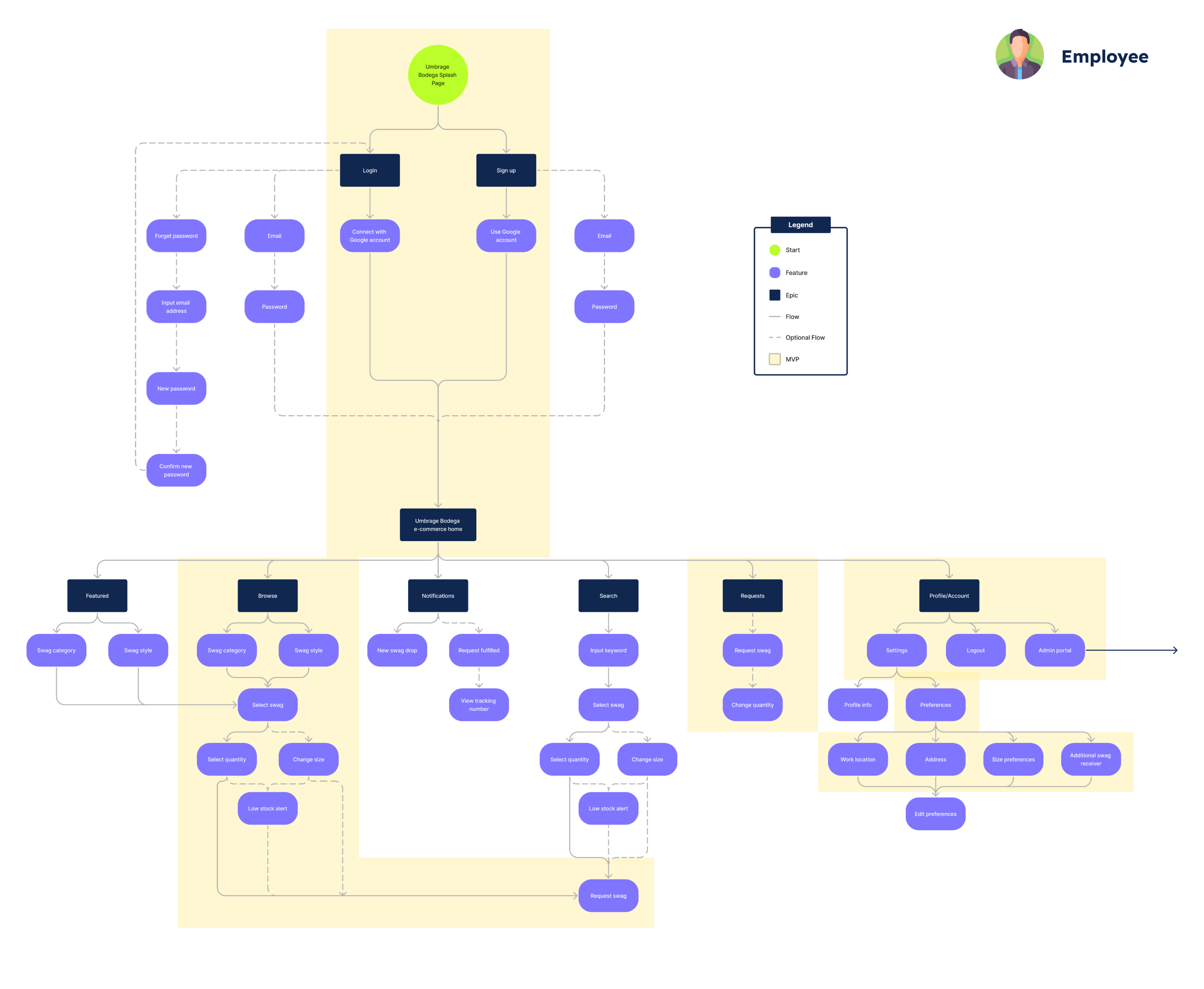
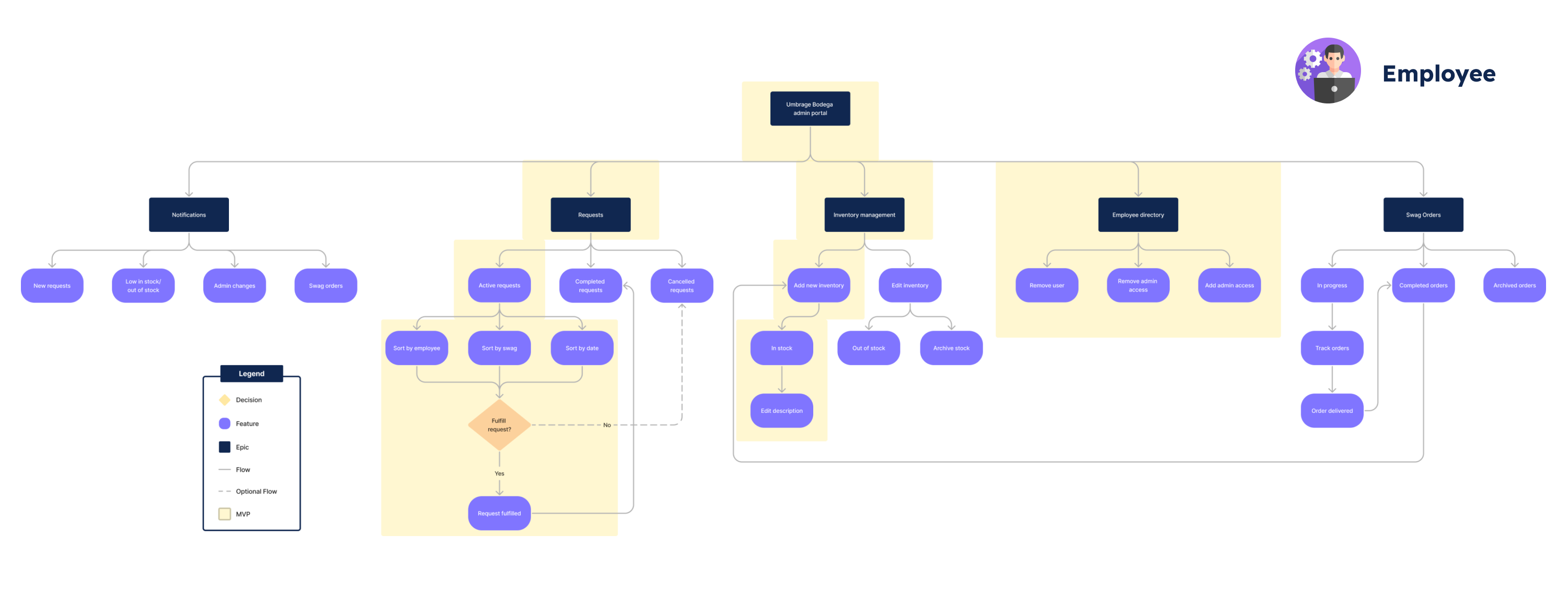
Since the app has two user personas, we created a separate flow for admins and employees. I worked with the product manager and designer to brainstorm epics and features for this app. We also decided on the MVP based on the developers' capacity for two sprints.
Once employees log in or sign up, they can access the Umbrage Bodega swag site. They can browse the featured swag or search for a specific swag. Once they find something they like, they can check out the item's description, add quantities, or change their default size. After selecting their choices, the employee can request the swag, which will appear on their request page. Employees with admin privileges can access the portal by choosing it on their profile.
The admin portal's primary utility is to handle employee requests and inventory management. We also added an employee directory since admins need addresses to send swag to remote employees.
Keeping track of the Umbrage swag stock can be frustrating when there isn't one app to manage inventory. Also, employees would request swag for a specific size, but it's sometimes out of stock. As a team, we want to find a solution for inventory management and allow employees to pick out swag in one centralized app.
We researched different e-commerce sites and inventory management systems to analyze app features and design competitively. The ones that stood out to us were Zoho Inventory, Squarespace Ecommerce, and Real Thread.
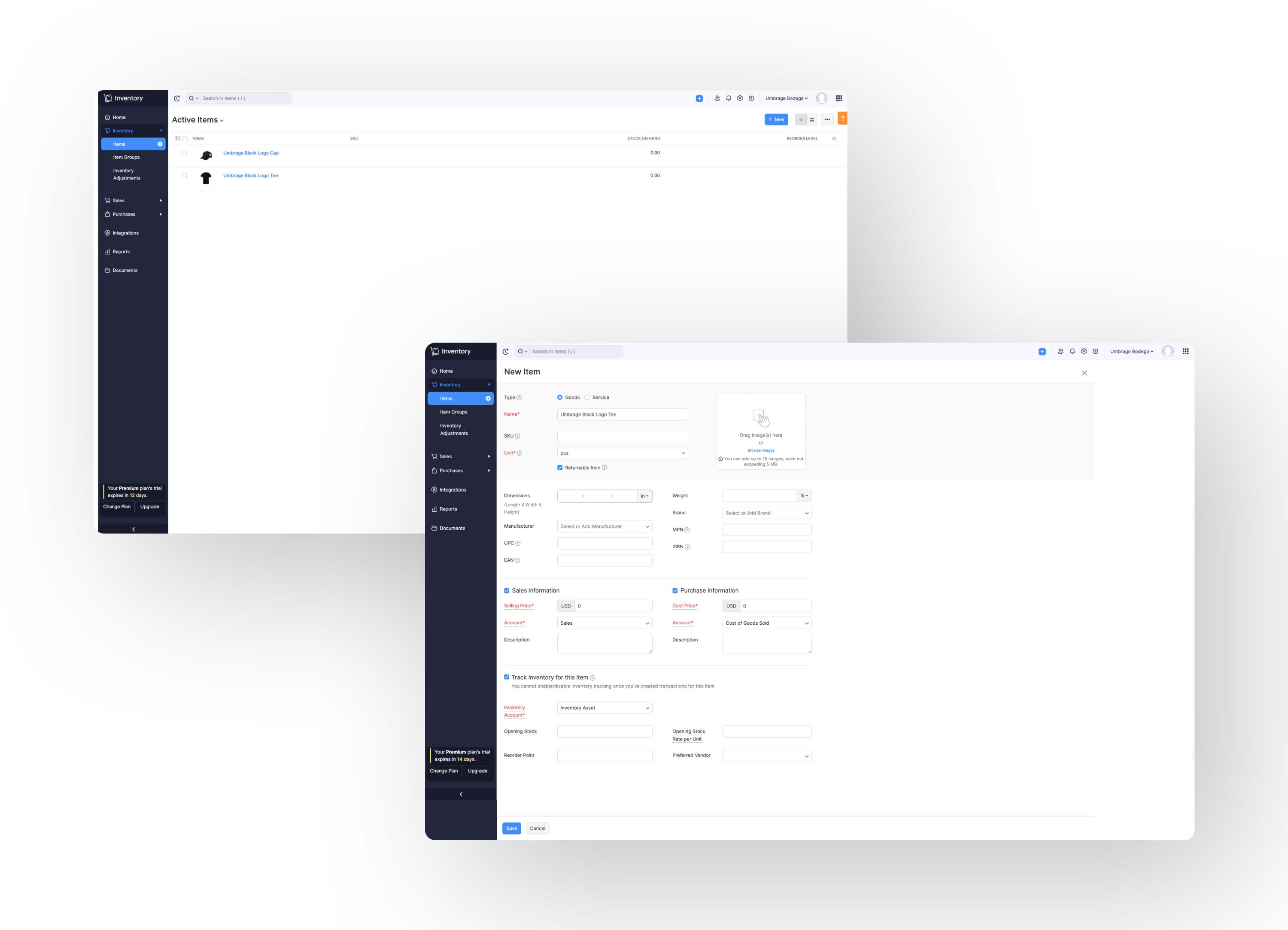
One of the inventory management systems we checked out is Zoho Inventory. The app helps maintain large quantities of items and track sales, customers, and vendors in one place. However, the user experience could be more straightforward for the average user selling small amounts and only needs to ID some of their products with an SKU. Also, the interface is very utilitarian, with little hierarchy or noticeable call-to-action. On the product overview page, the user has to individually click on each product to see the description, which can be frustrating if users want to see an overview of many products.
Squarespace e-commerce is another inventory management system we checked out. The site experience is excellent for beginners new to e-commerce since it provides user onboarding tasks to complete and helps them understand their e-commerce services. However, the interface can be too simple such as a lack of visual hierarchy and containers with thin outlines, which can be hard to see in the background. Also, headers can sometimes get lost in the inventory forms and content, making it hard to skim for information.
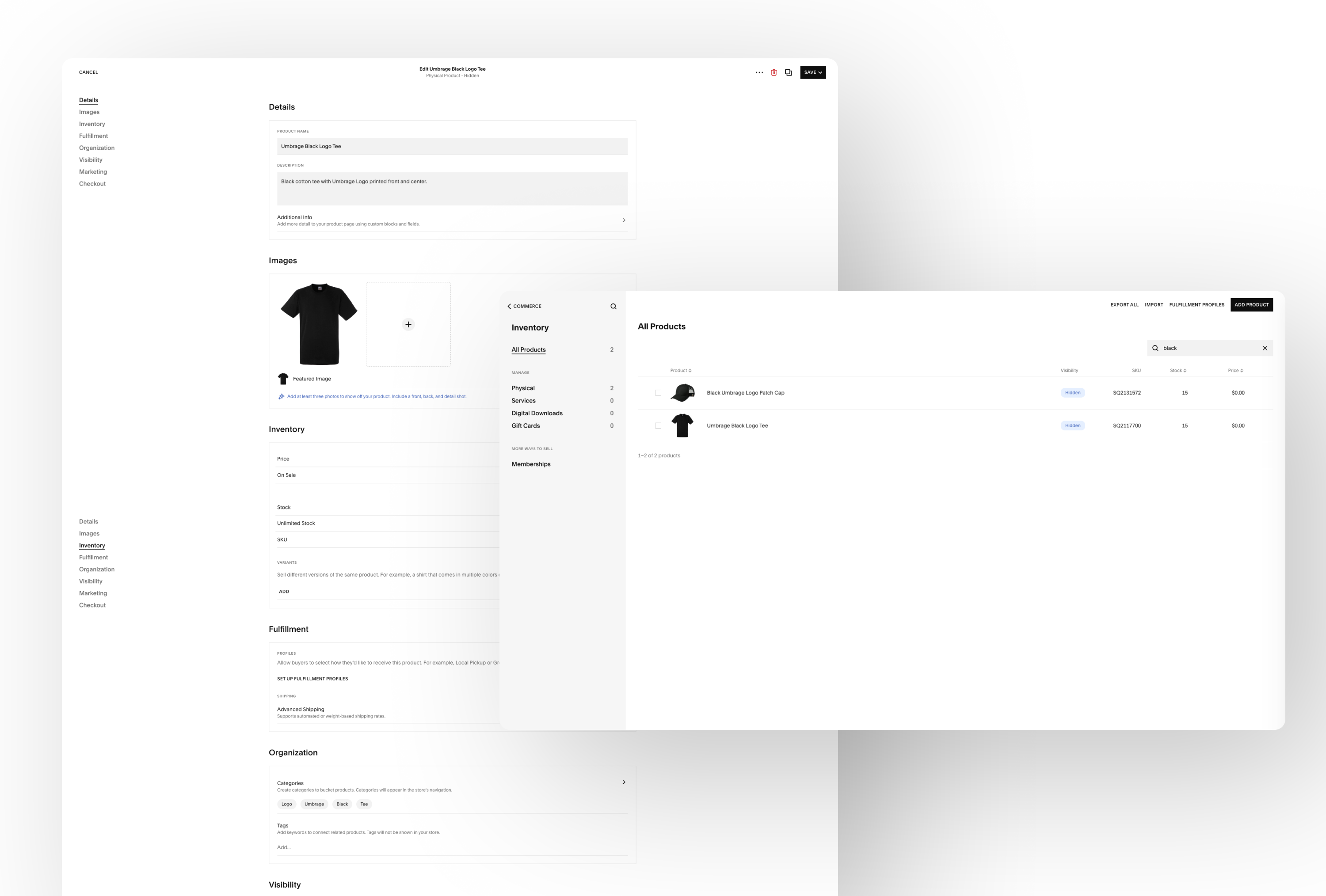
Real Thread is one of the vendors the stakeholders use for some of the Umbrage swag. We researched the site to improve the e-commerce and bodega side of the site and compared swag descriptions we can add to the admin portal's inventory management.

I led the design system's creation with a collaborative effort to align on the direction. We apply the system to the wireframes for the admin portal and employee e-commerce side to keep a consistent look and feel.
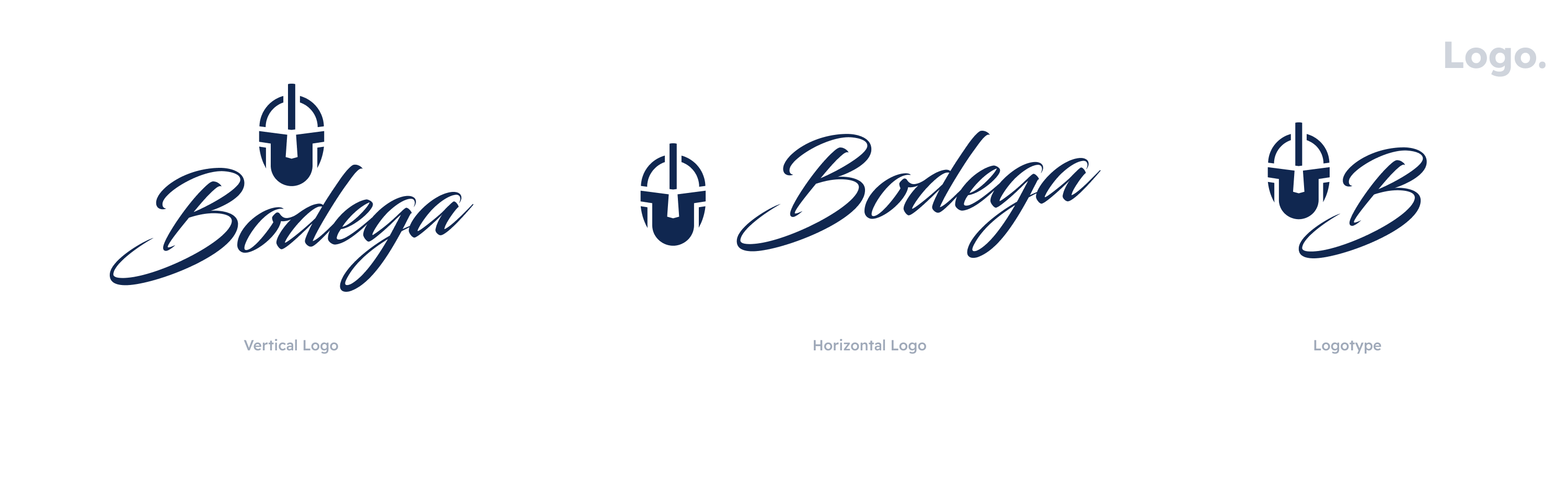
The Umbrage Bodega visual style is all about being vibrant and fun. We designed the bodega logo to mimic the script and handwritten type on bodega signs and kept the Umbrage helmet logo to keep it cohesive with the Umbrage brand.
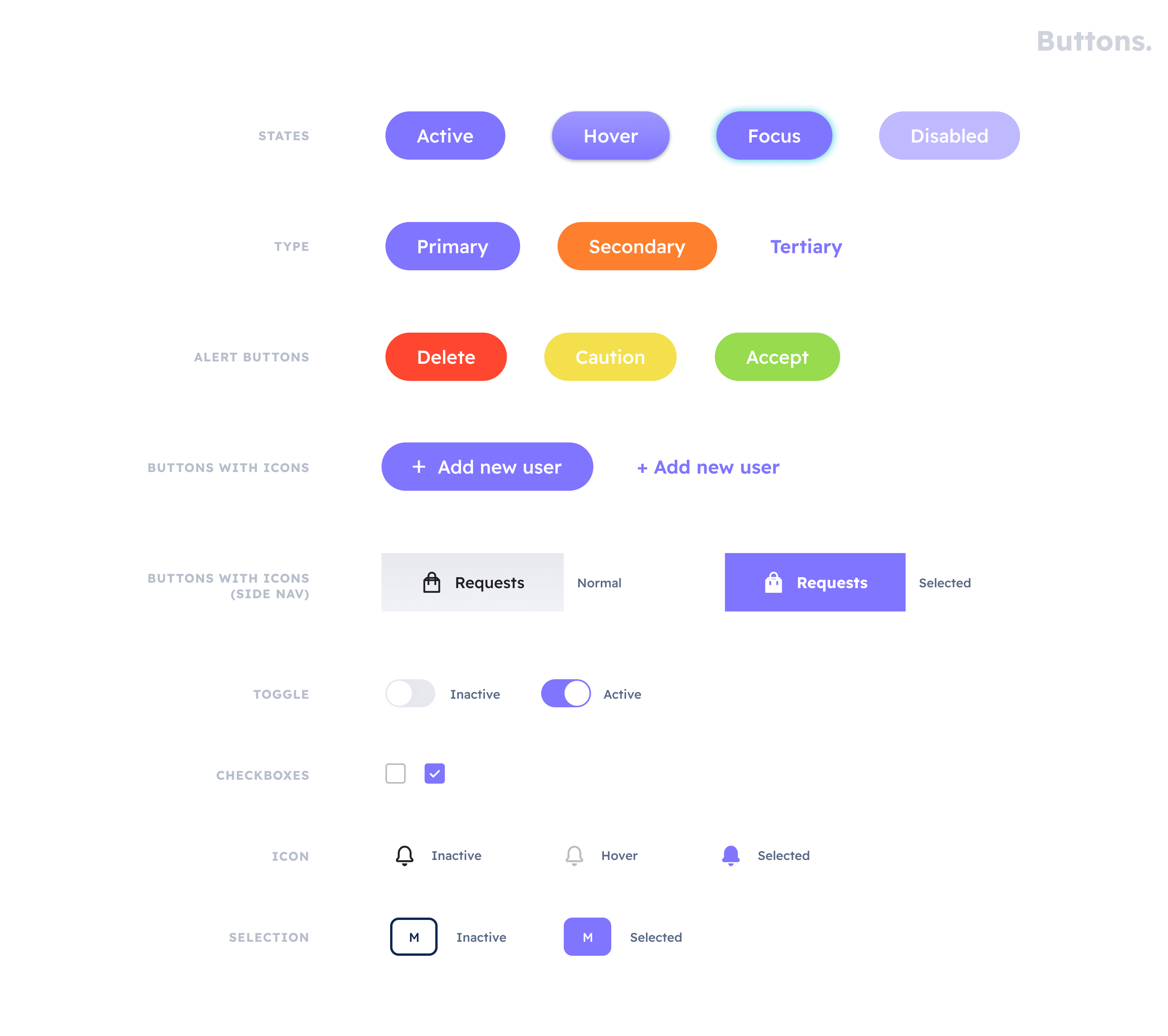
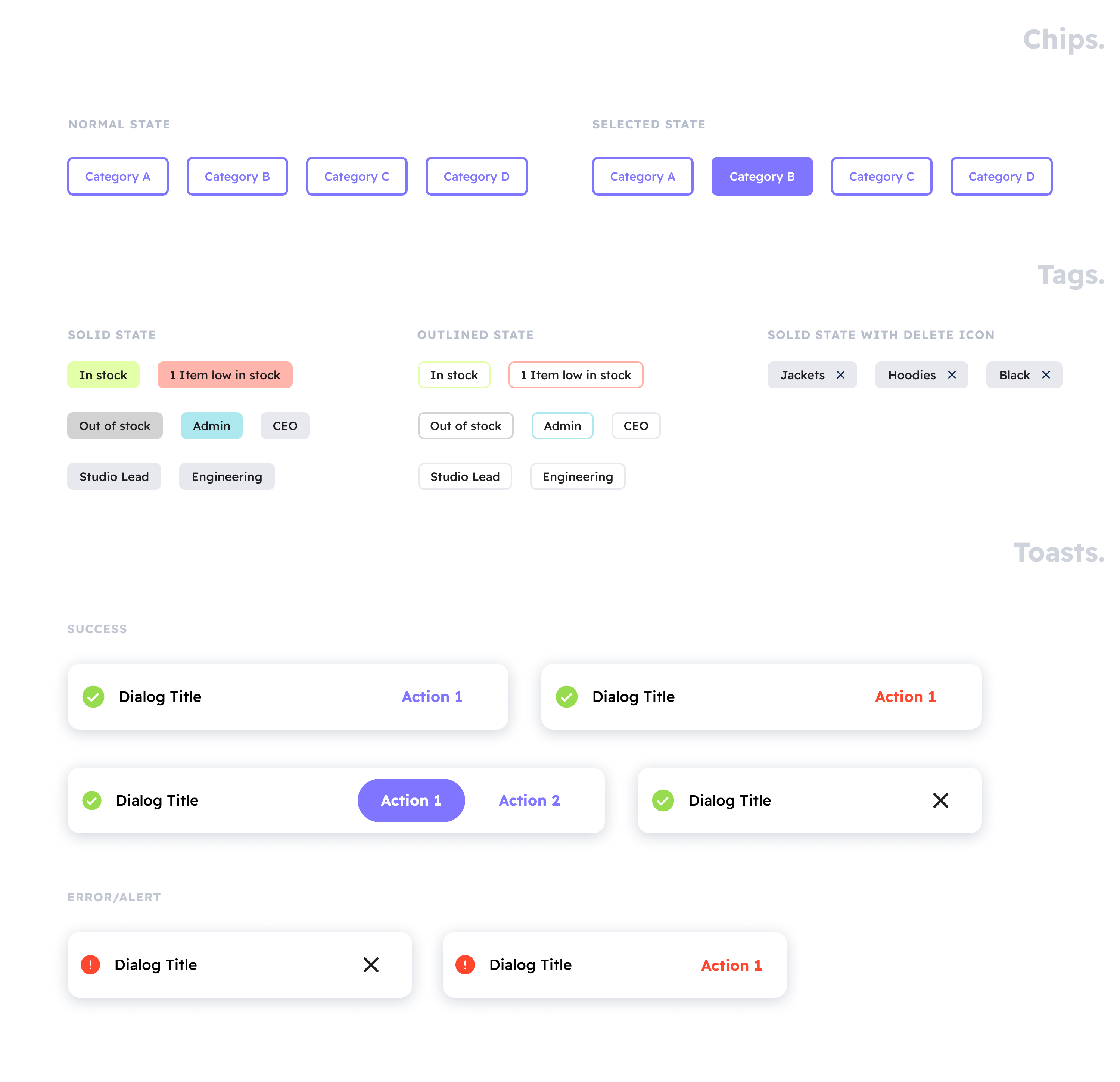
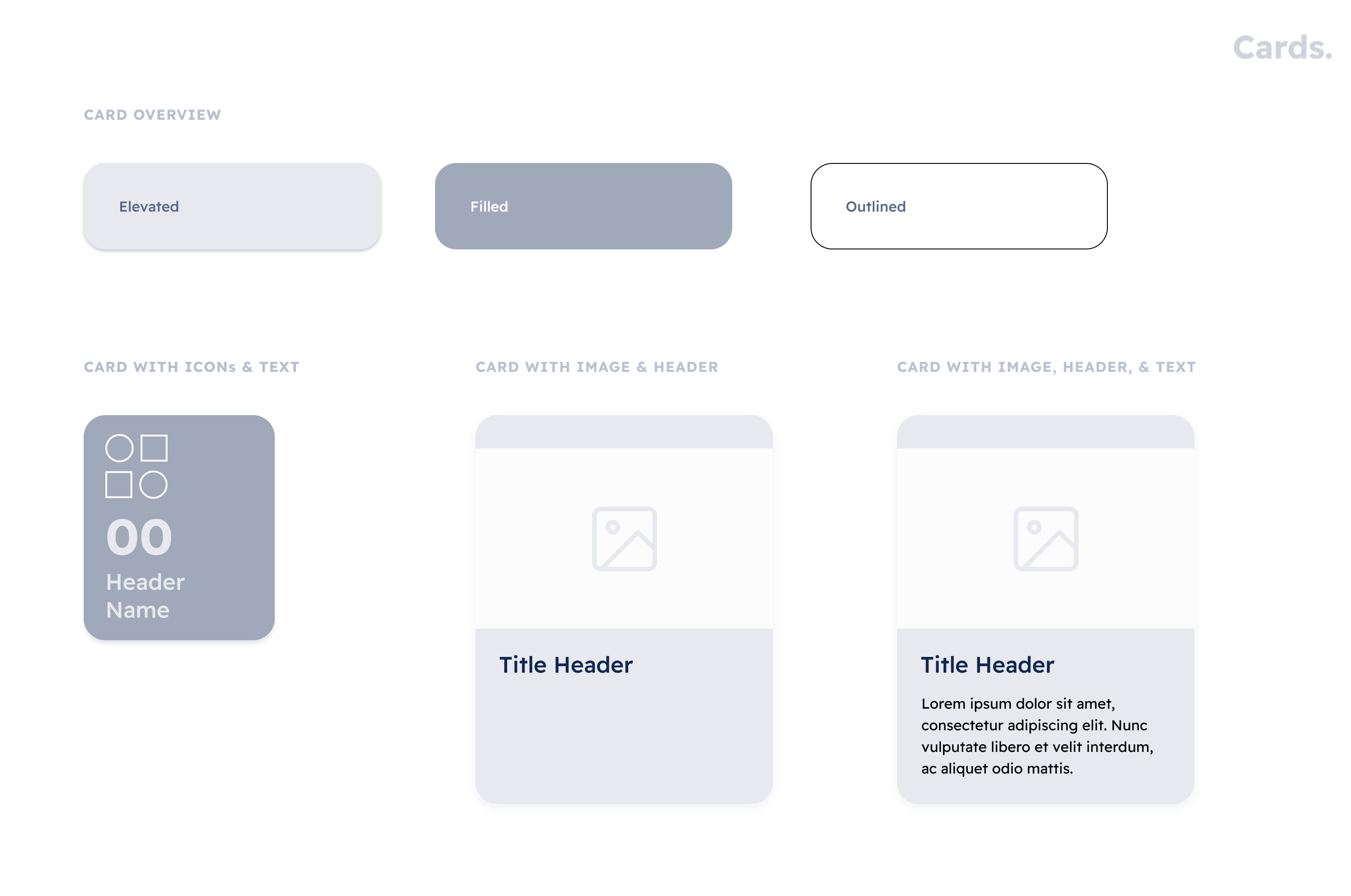
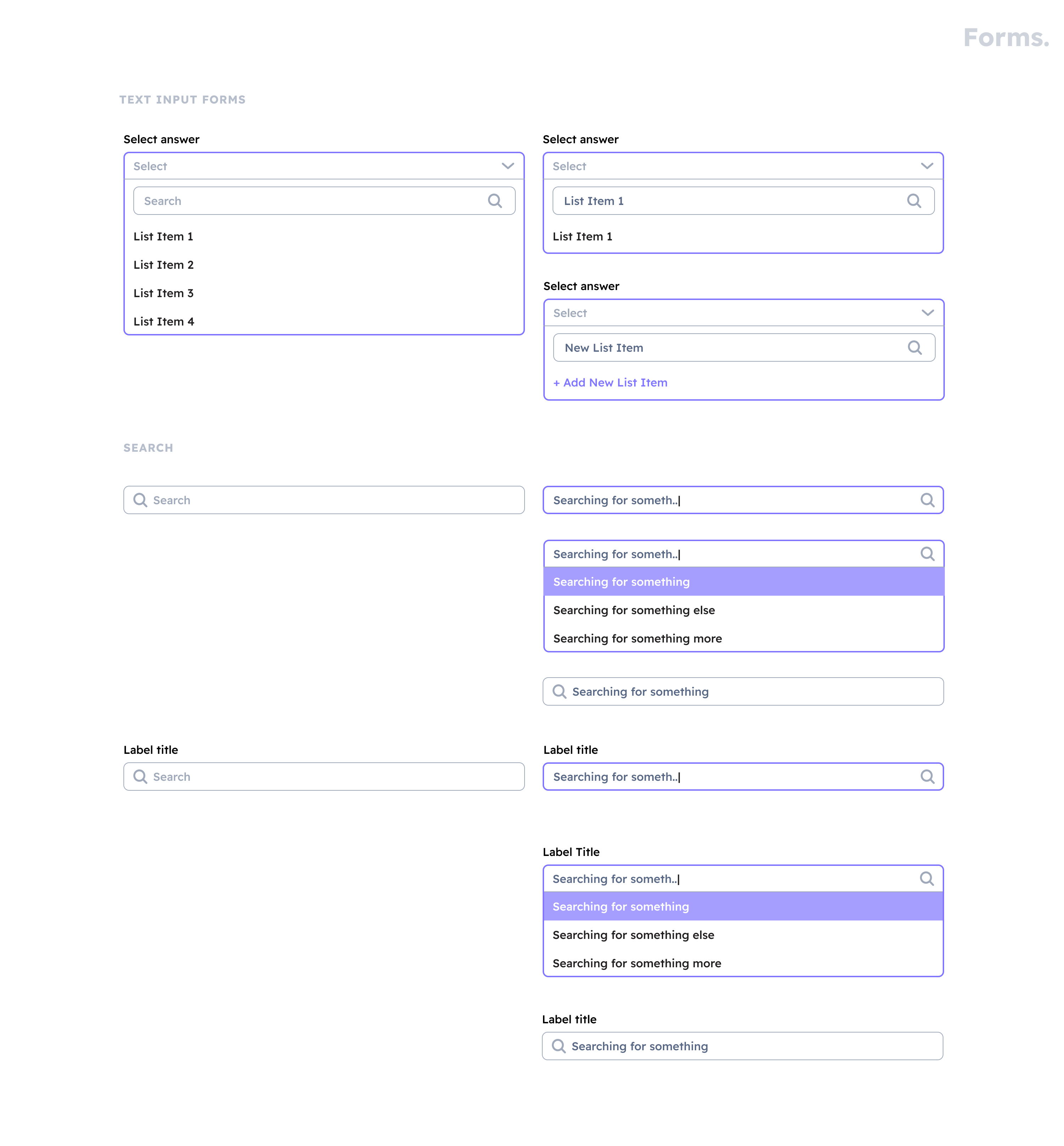
My designer teammate and I chose colors to represent the energetic atmosphere of the people and studios and express popping vibes. We kept the original Midnight navy blue on the Umbrage brand as a primary color, with blue-violet and ocean to complement the dark color. For the secondary colors, we got creative and found bright lime, punch, and Sunkist colors.We chose a humanist, geometric typeface for the typography, which expresses the friendliness and fun of the visual style. We also picked this type because of its readability in smaller font sizes. The components also reflect the energetic visual style with curved corners on containers and pill-shaped buttons. We started building the list of components on the design system to keep it cohesive as we designed the wireframes and prototypes.
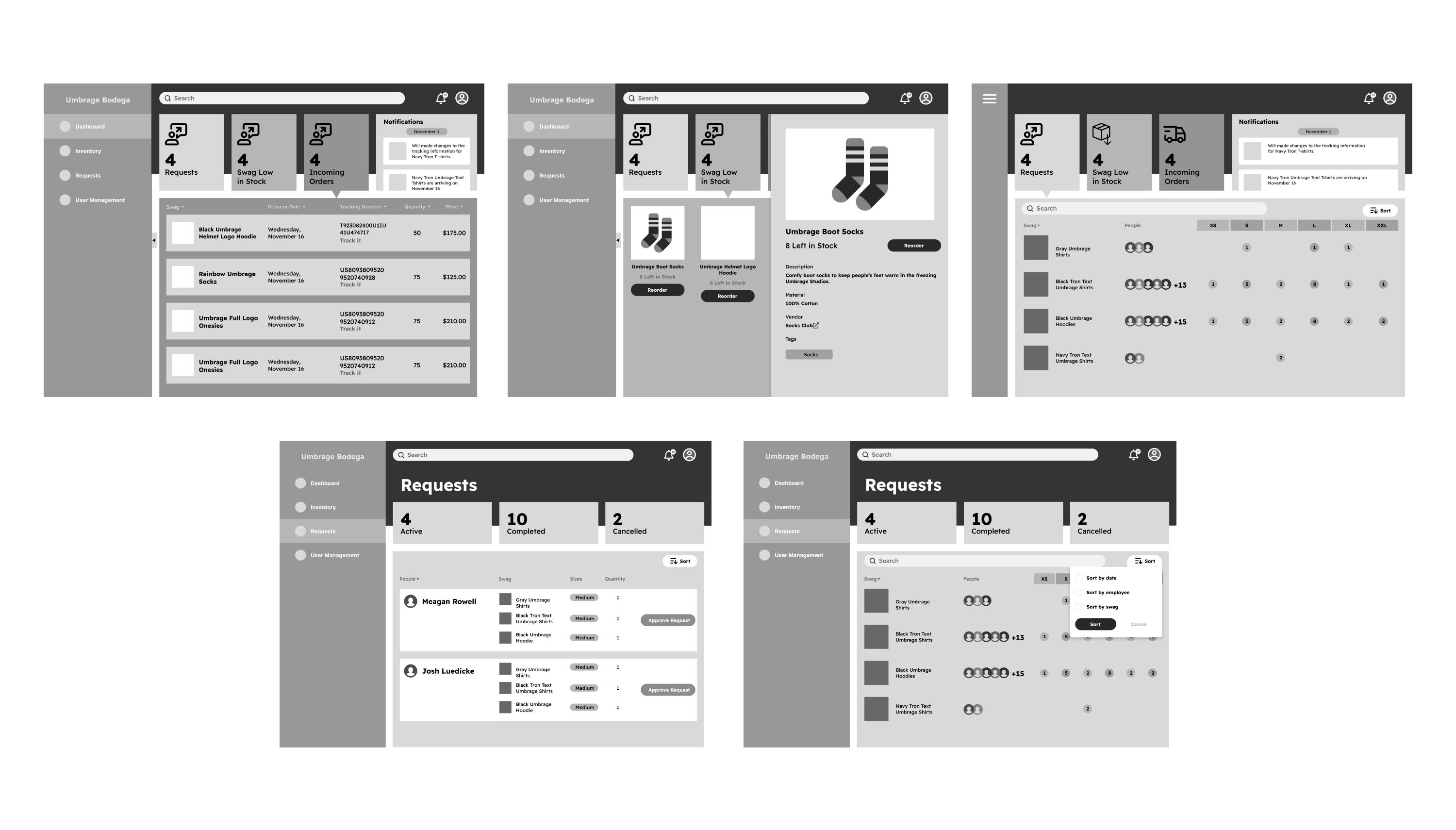
We used the information and interviews gathered to begin designing wireframes. My designer teammate and I focused on developing separate portals, the employee side for my teammate and the admin portal for me. We received critiques from our peers and product manager about the usability and design layout and improved the wireframes from the feedback we received.
We implemented the feedback we received on our wireframes critique to build out the high-fidelity prototype and also received critiques on improving the design.
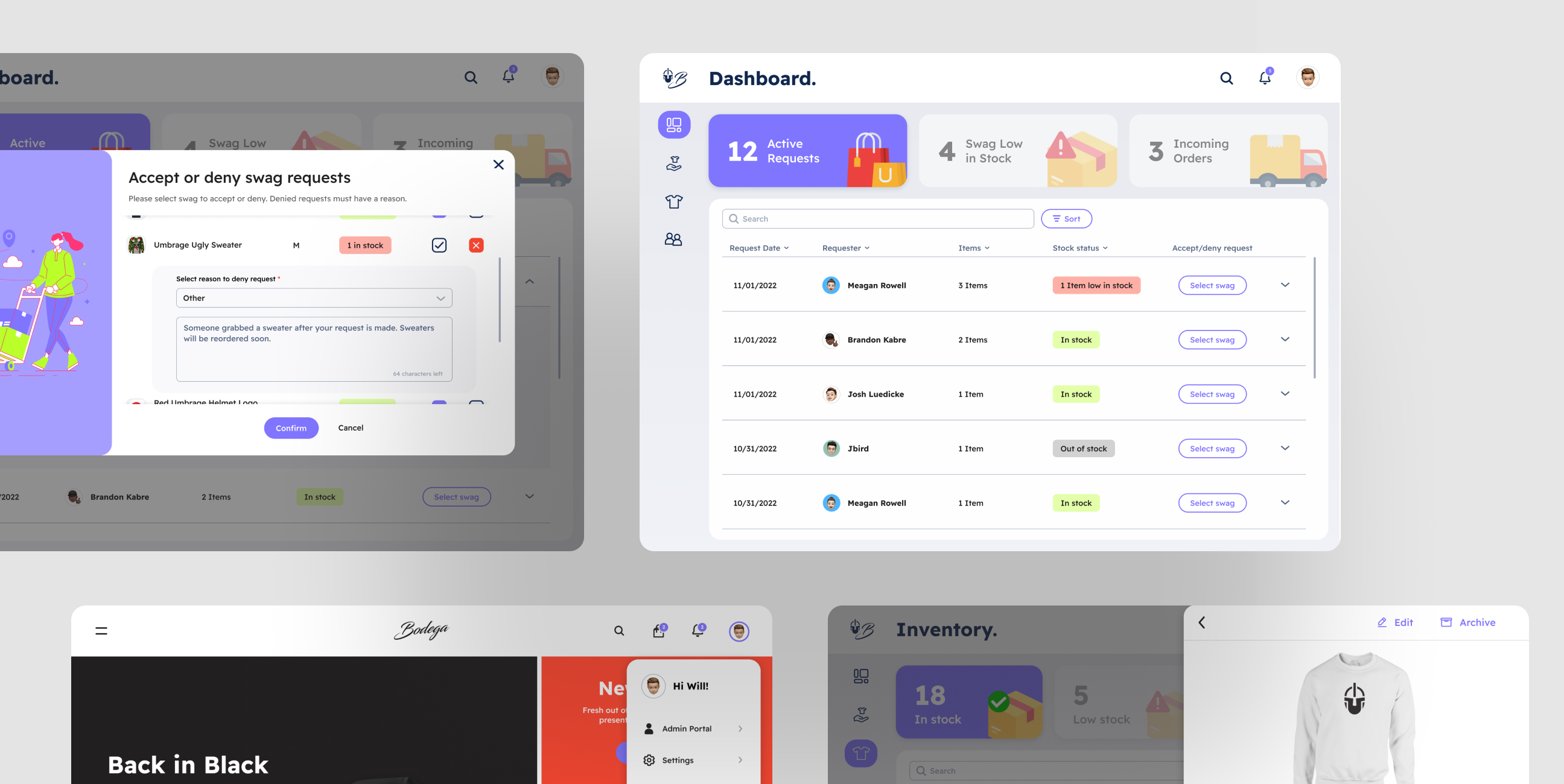
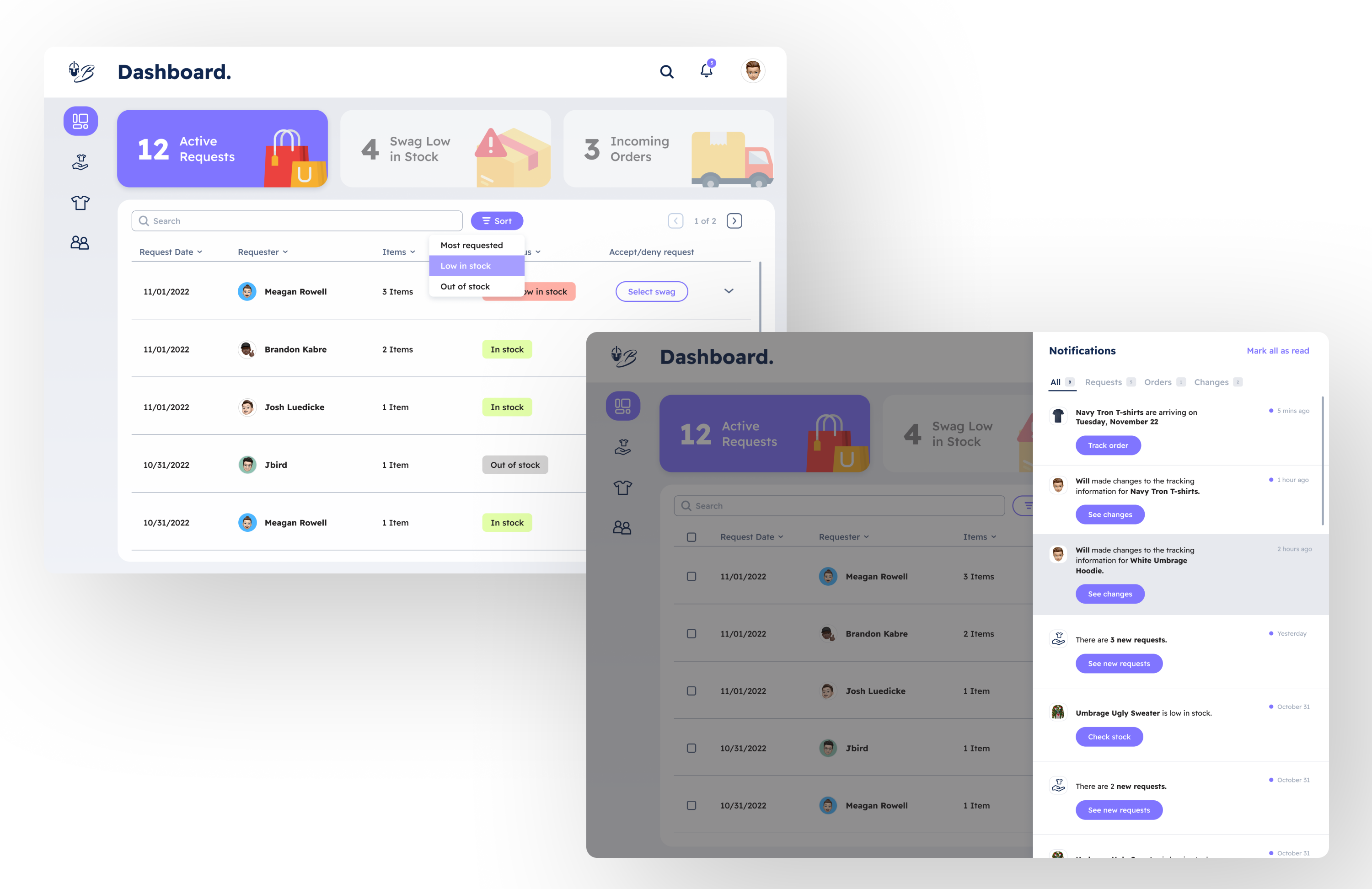
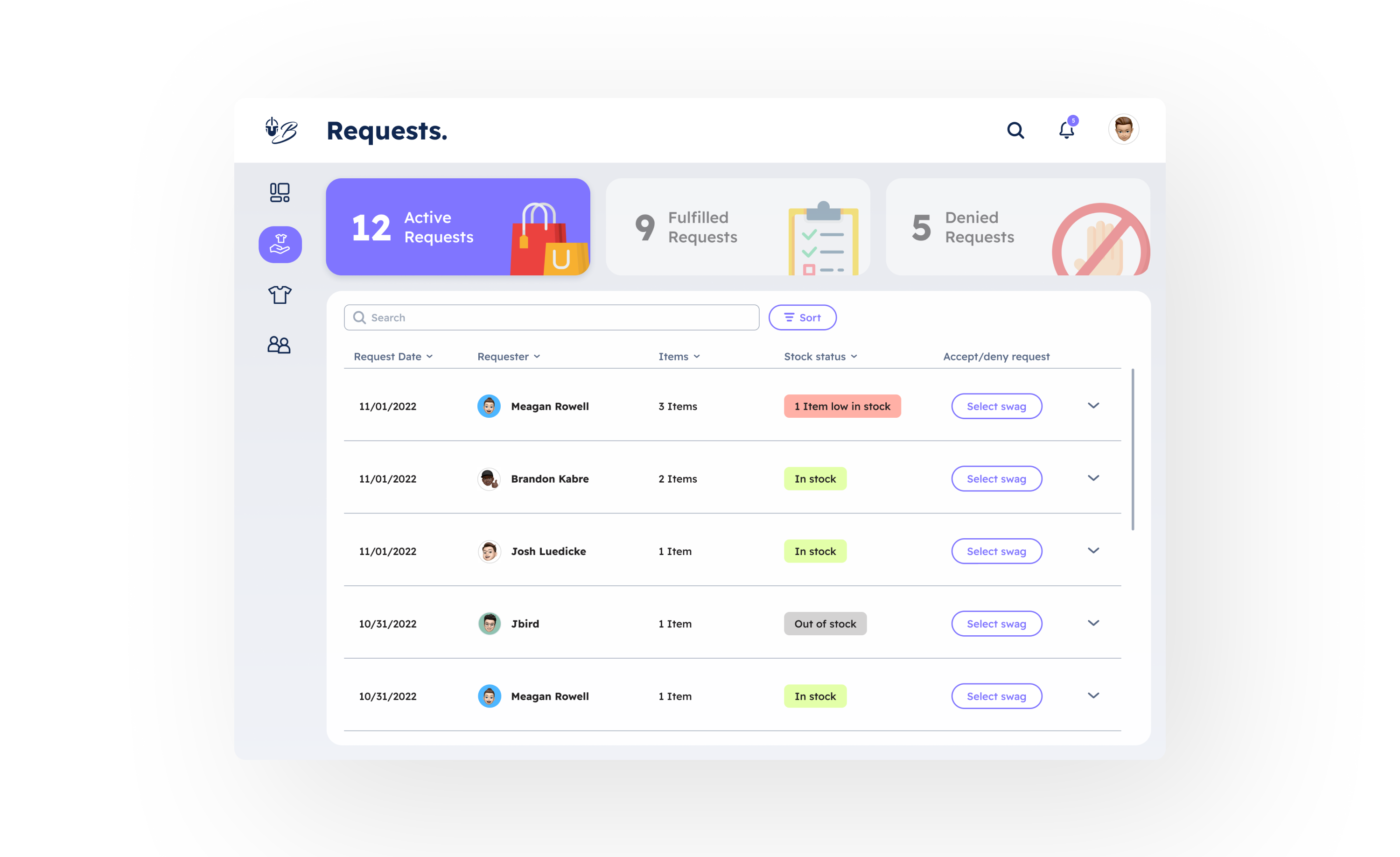
Umbrage employees can access the e-commerce site by logging in, which they will land on the store homepage. Those with admin privileges can access the admin portal through their profile. Once they land on the admin portal overview page, they will see divided sections, which include the menu on the left toolbar, three tabs with corresponding table information below, and the table below the tabs. On the menu, the active tabs are in a blue-violet box and the icons are outlined white. The active tabs are also highlighted in the blue-violet container and the inactive tabs are in a lower opacity.
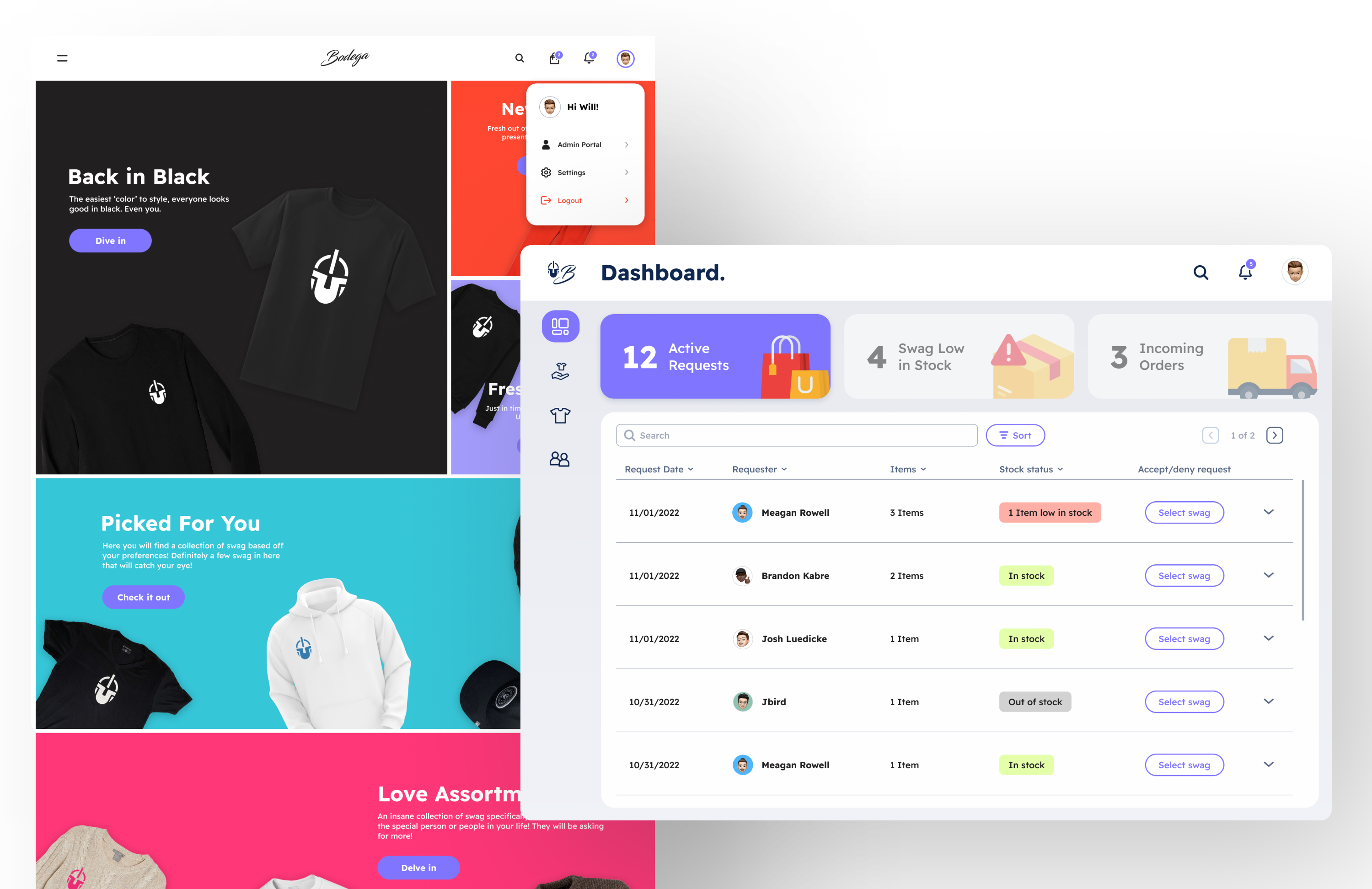
The admin can sort the table information by selecting the Sort button on the right of the search bar. They can also check out the notifications, which is a drawer that will appear from the right, and the notifications are filtered into different categories such as Requests or Orders. The list of notification updates is ordered with the most recent on top and unread notifications will have a blue-violet dot adjacent to the dates.
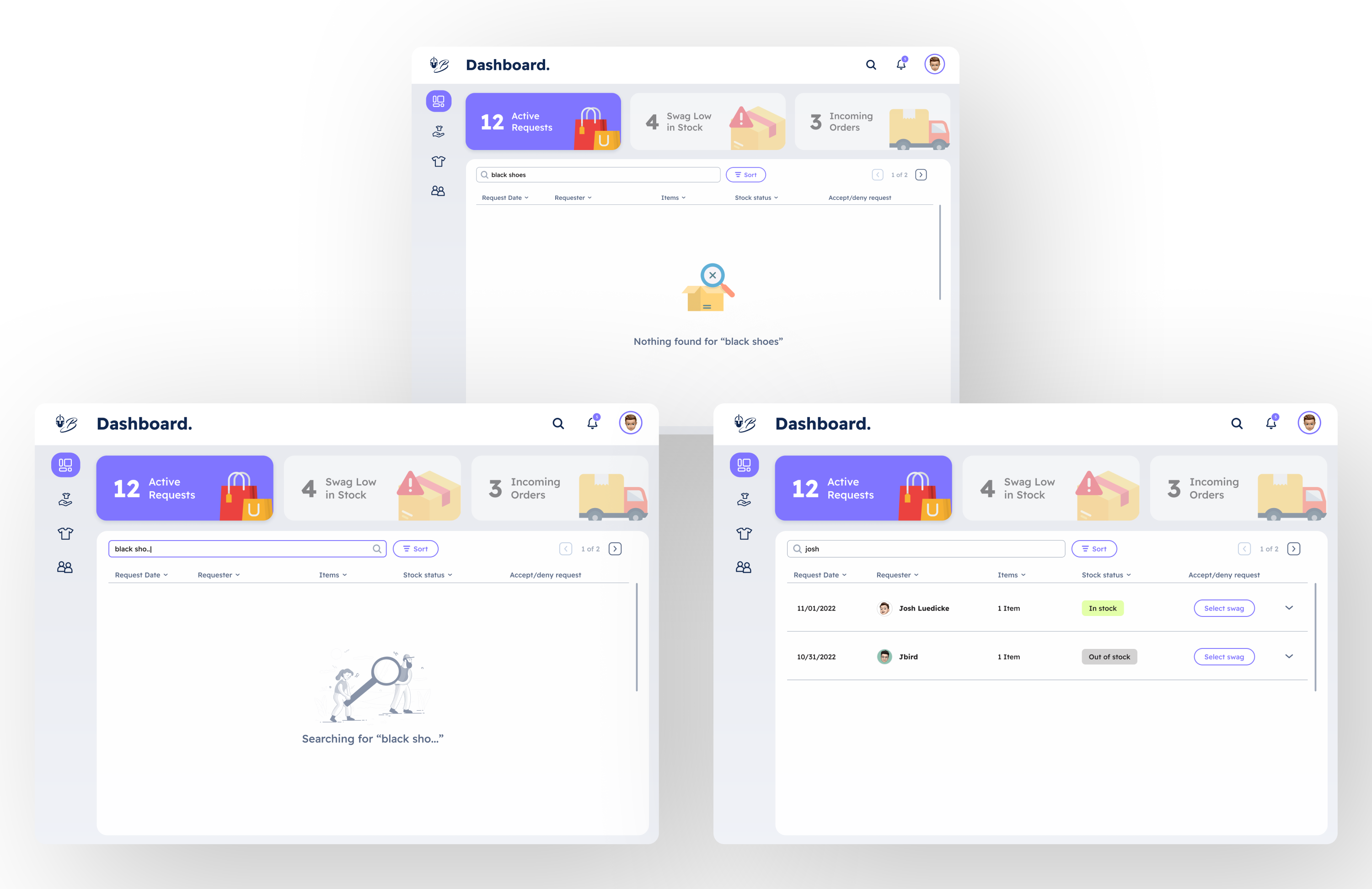
Admins can search using the search bar at the top of the table. Different screens will appear based on the activity the search engine is completing, such as typing and successful or unsuccessful results.
Clicking on the chevron at the end of the table row allows the admin to see a quick overview of total swag requests for each employee. The overview will list the items in cards and present the quantity, sizes, and swag stock levels. Different colors represent the swag stock levels: In stock, low in stock, and out of stock are represented in green, red, and gray, respectively.

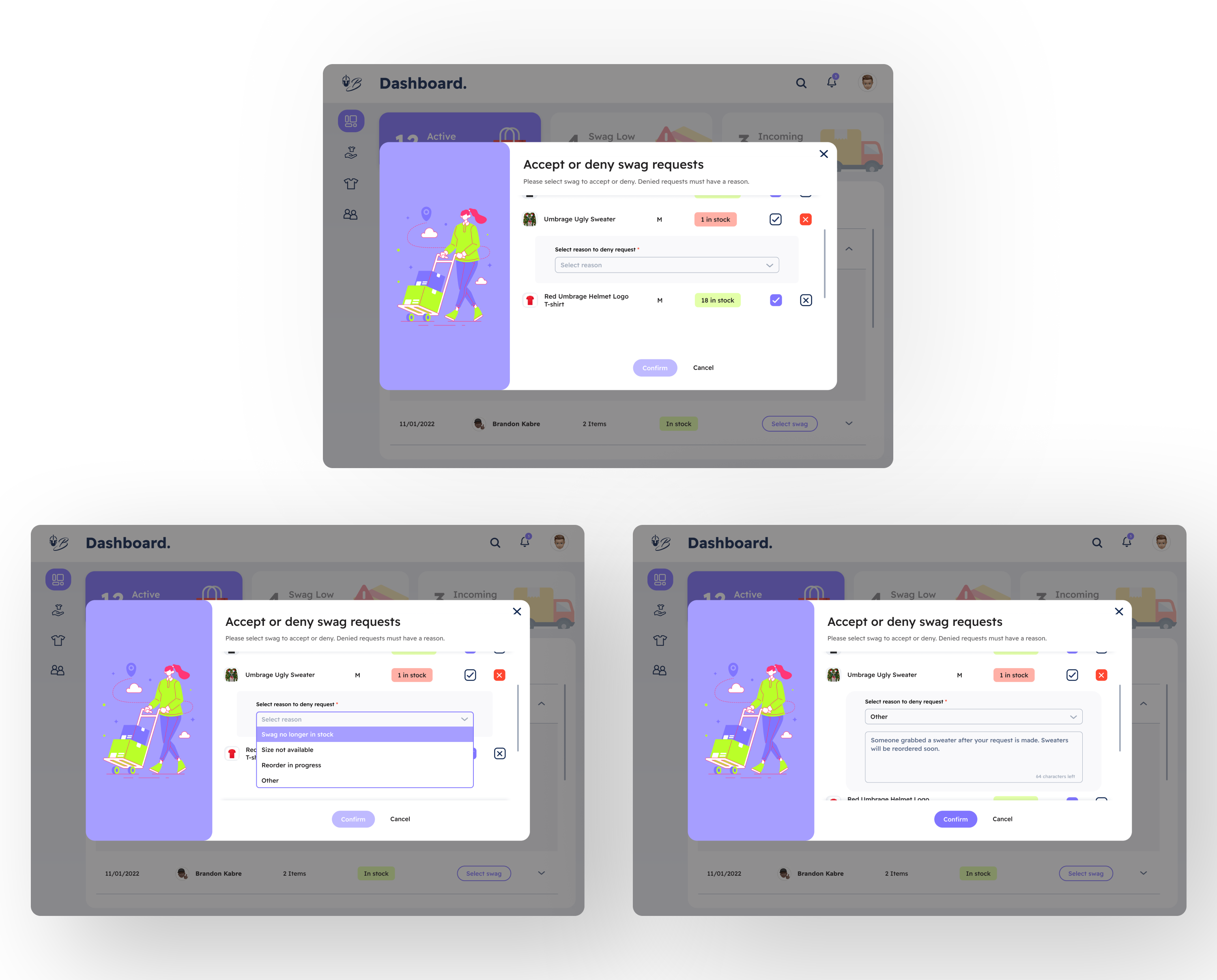
Once the admin clicks on the outlined, blue-violet Select Swag button, a modal appears where they can select buttons on swag to accept or deny, represented by the checkbox or X button, respectively. The Confirm button will become active once the admin selects at least one swag to accept or decline. If they confirm one swag when there are multiple swag requests, the app will remind them there are other requests still pending.

When denying requests, admins must state a reason: choose a default option or type out their reason. The Confirm button becomes active once they select a reason.
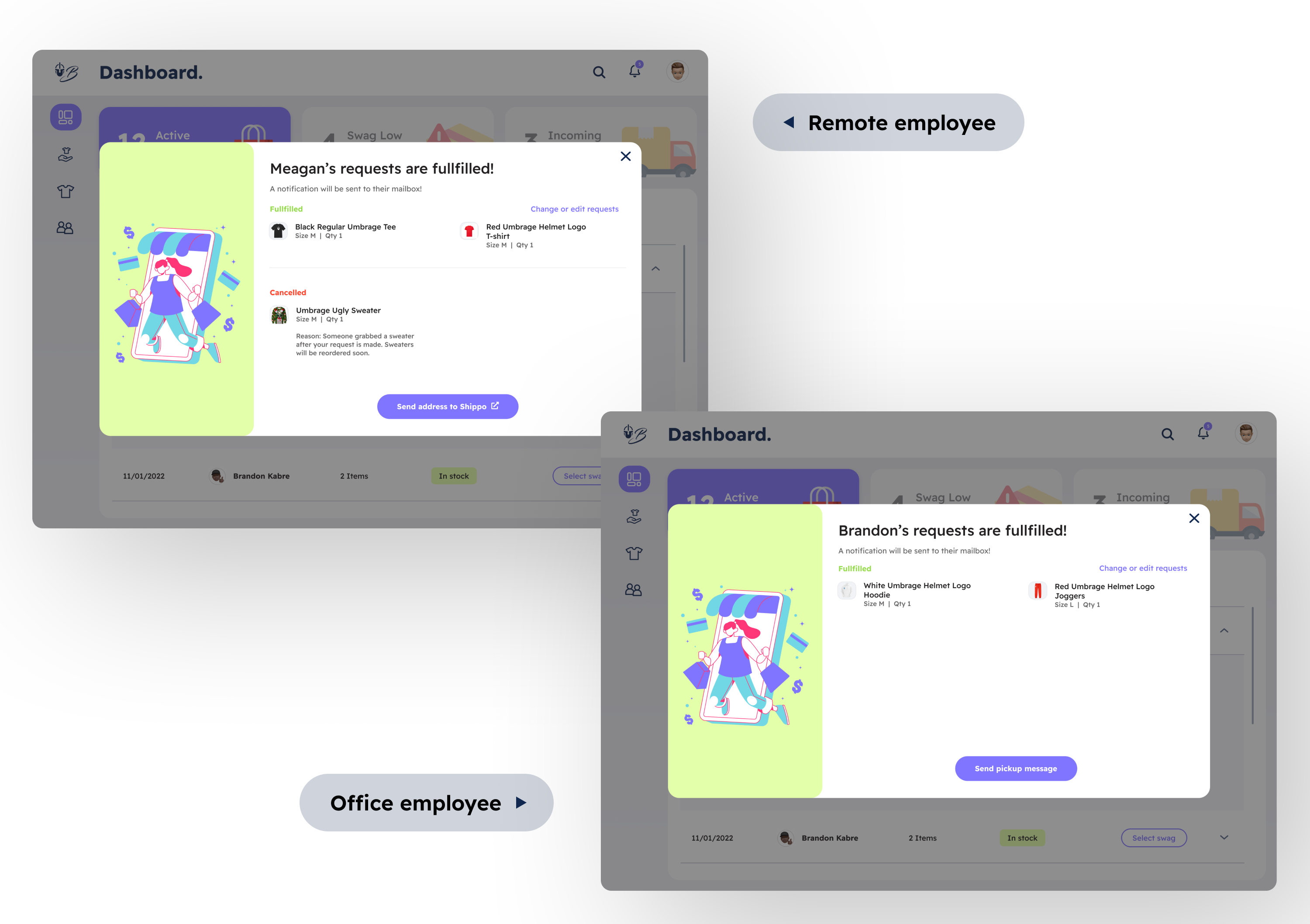
The confirmation screen will dispute for remote and office employees depending on the employee's location. For remote employees, admins will see a button to go to an external site Shippo, which is Umbrage's shipping provider. Admins will see a Send a Pickup Message button for office employees to pick up their swag.
Although the landing page has an overview of active requests, the Request page, accessed from the left menu, provides all requests, including fulfilled and denied requests. Like the overview page, table information changes when admins click on the tabs above the table.
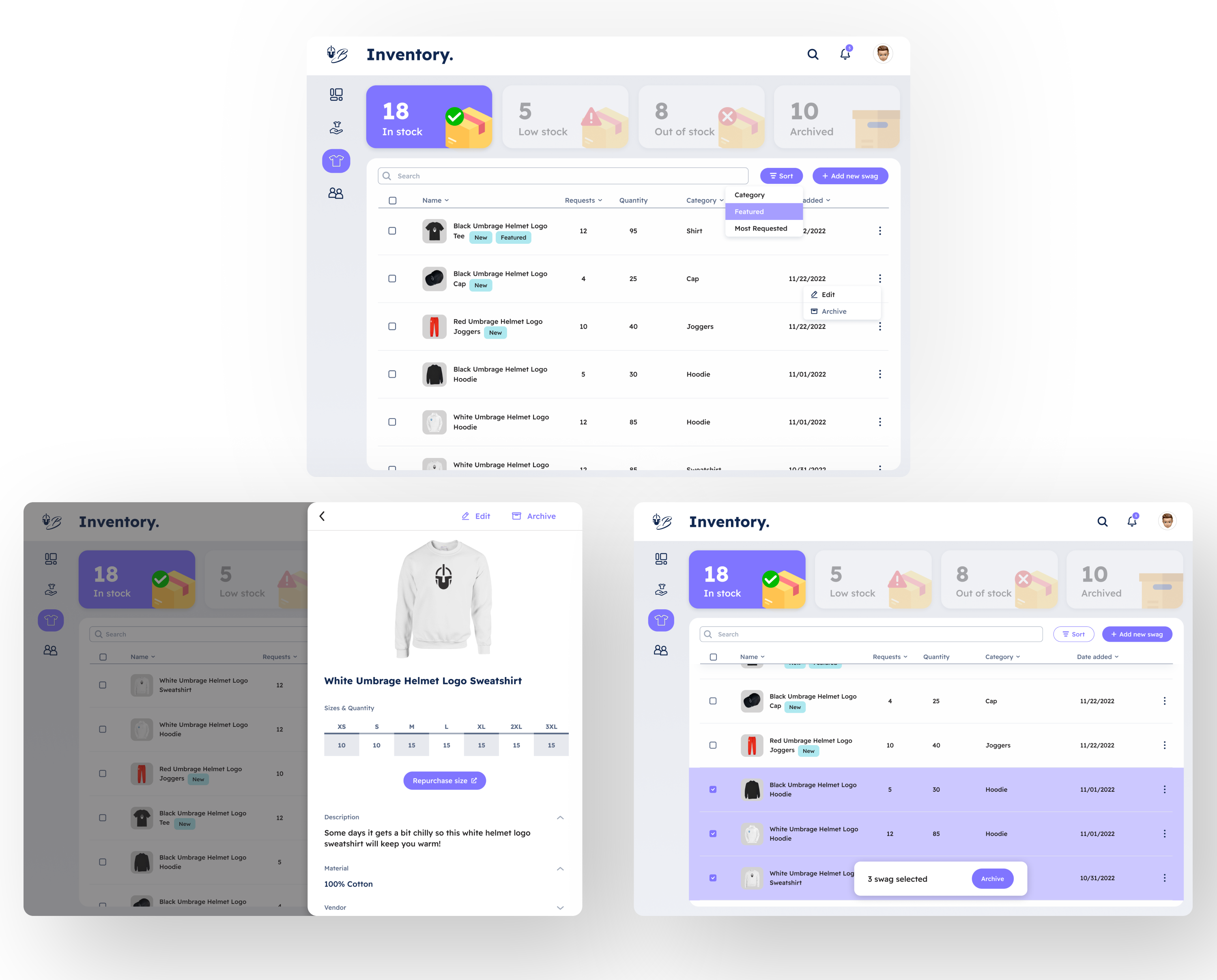
On the inventory page, with the shirt icon on the menu, admins can see an overview of the in-stock, low-in-stock, out-of-stock, and discontinued inventory. Inventory can be sorted using the outlined Sort button next to the search bar or by clicking the table headers.
Admins can also edit or archive swag by clicking the three dots menu at the end of the table row or clicking on the swag name and image, which will open up a description overview from the right. Multi-selecting checkboxes on the left column on the table rows allows the admin to archive multiple swags.
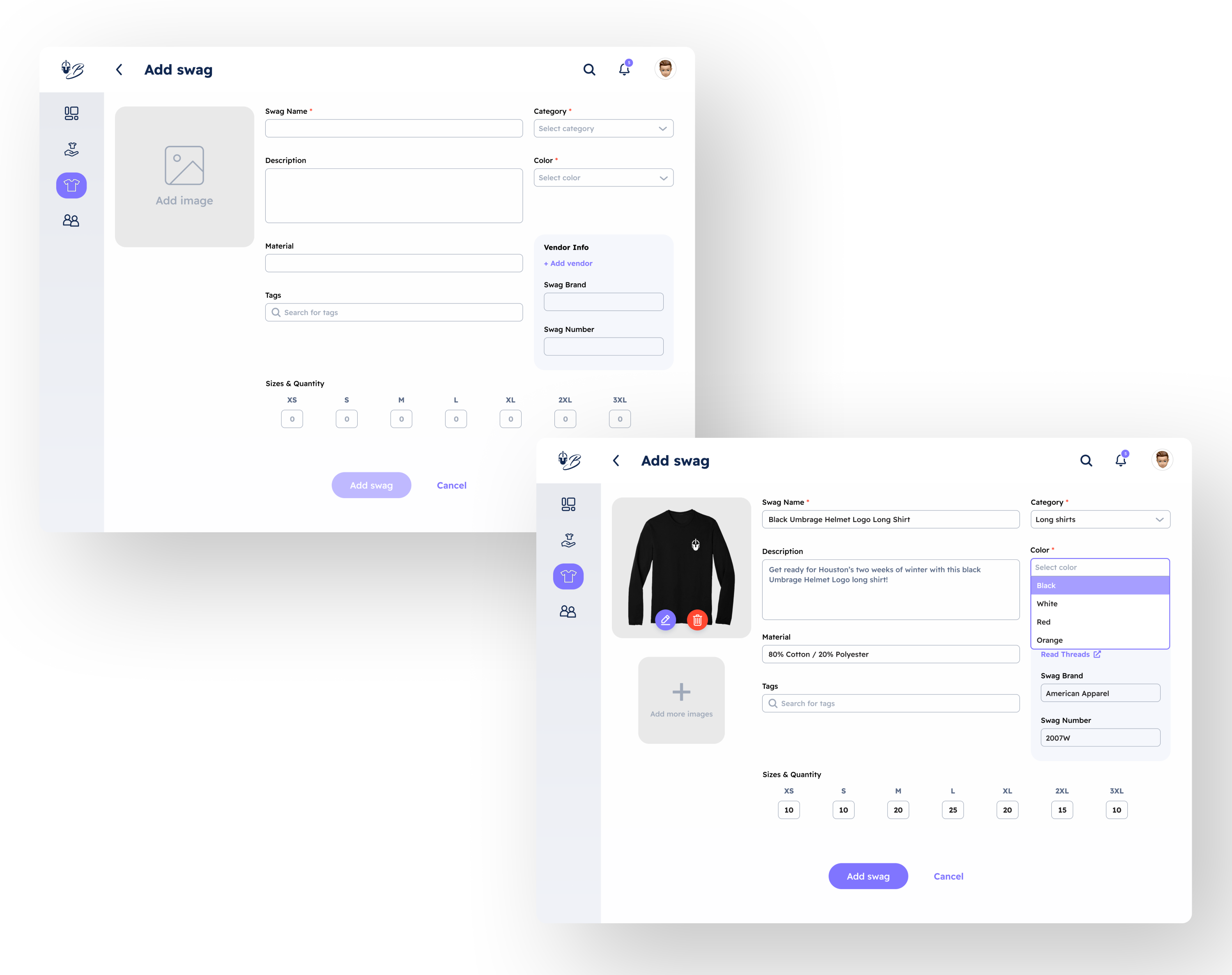
When new swag drops, admins must add it to the system so Umbrage employees can check it out at the bodega. Admins can click the blue-violet Add New Swag button adjacent to the Sort button on the table to add new swag. A new screen will appear where admins can input information and descriptions about the new swag.
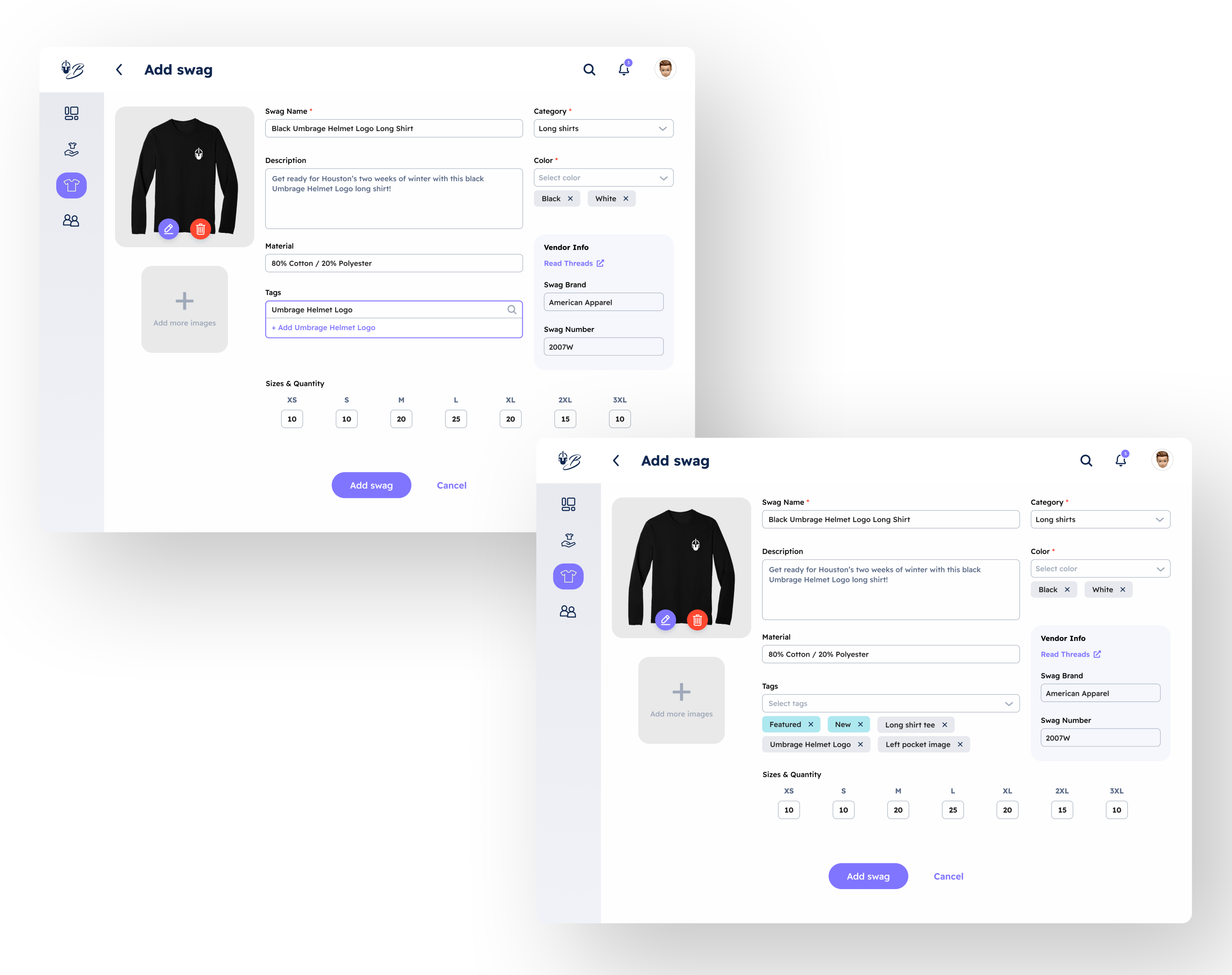
Tags help organize swag when searching inside the admin portal and bodega. Admins can select multiple colors in the Colors form and labels in the Tag dropdown. Admins can choose default tags in the dropdown or type to search for titles. When specific tags aren't in the list, admins can choose to add the tags by selecting +Add tag in the dropdown. The new labels are added to the database and can be found in the list once admins search.
Umbrage needs a centralized system to keep track of its employees' information and uses several apps, such as Notion, to maintain it. As a team, we saw managing employees' information as another problem, included with maintaining swag disbursement, so we added an employee directory as an extension to the primary user problem. I worked with my teammate to brainstorm how to improve their current directory on Notion, and he assisted me with the design already established on the admin portal.
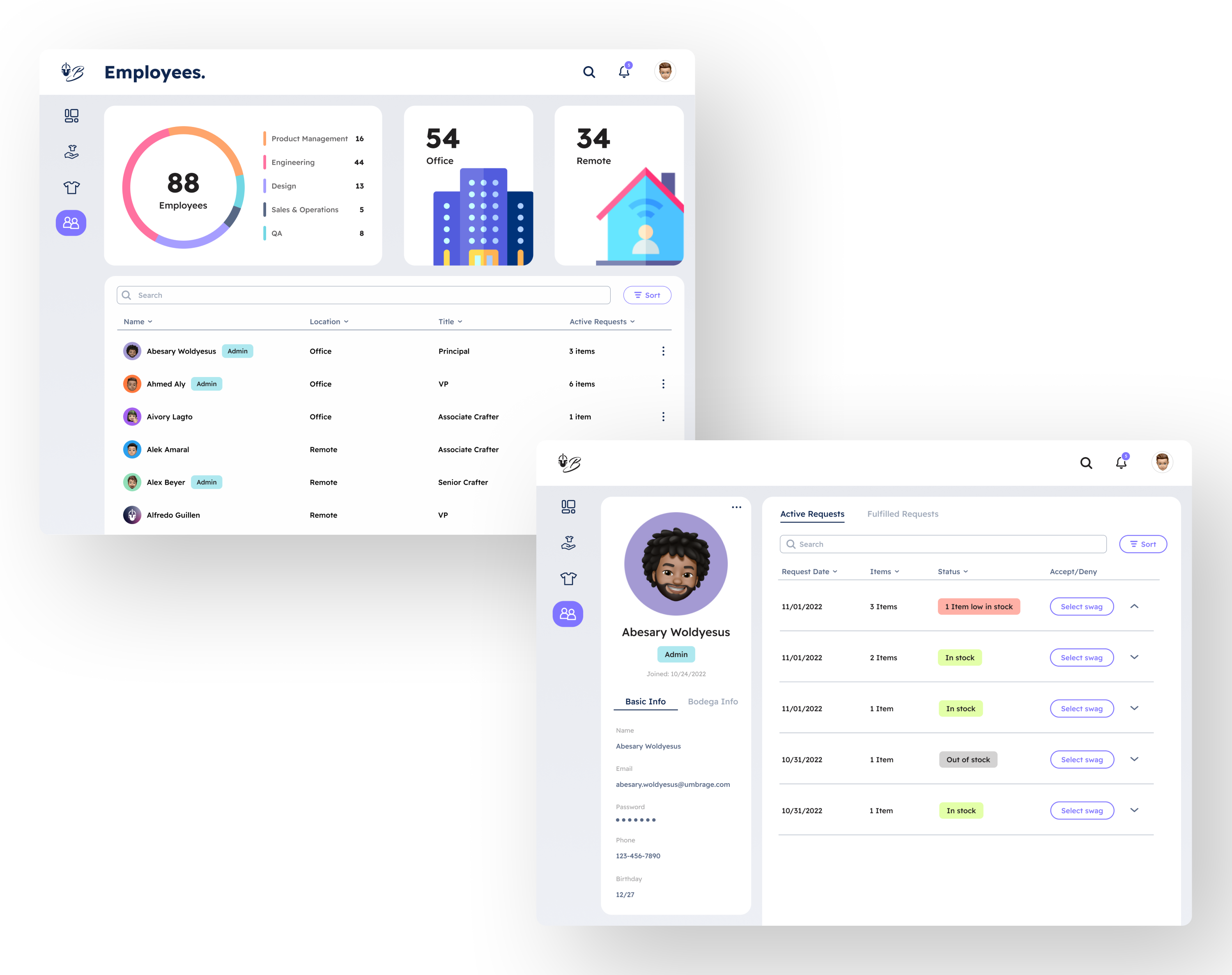
On the employee directory overview page, the admin can see the total number of employees in Umbrage and the different crafts, which are color-coded into multiple colors. Also, the boxes adjacent to the graph show the total number of office and remote employees. Below is a table with employees' names, locations, titles, and active requests. Clicking on an employee's name leads to their profile page, where admins can see their current and fulfilled requests or change their admin access.
As a team, we successfully solved user problems and devised solutions for the app flow and design. Although we successfully solved the problem and created designs, user research could be structured better since we experienced some roadblocks further down the project.
One obstacle is the need for developers during the first half of the project, which would help validate viability issues in the app design. Also, we need to ask more questions during the user research phase because we made design assumptions but found validation after questioning users and stakeholders.
In the future, more planning on time management will help our team partition time for user research and design phases better. Also, collaboration among different crafts is necessary to build a successful product since we experienced some backtracking in the design and development phase when developers came late to the project. Although we had some obstacles during our project, we can improve in the subsequent iterations.
©2023 Michelle Lam